
FL Studio Mobile Plugin | Bridge Between Mobile and Desktop Music Creation
Explore the FL Studio Mobile Plugin — sync your mobile beats with FL Studio desktop to mix, edit, and produce professional-quality music easily.
FL Studio Mobile APK Plugin is an essential tool for music producers who want to bring their mobile projects to the professional desktop environment. Designed by Image-Line, this plugin seamlessly connects your FL Studio Mobile creations with the desktop version of FL Studio, giving you the flexibility to expand, mix, and master your music on a more powerful system.
Whether you start a beat on your phone during travel or a melody on your tablet, the FL Studio Mobile Plugin ensures your creativity continues uninterrupted on your PC or laptop.
What Is the FL Studio Mobile Plugin?
The FL Studio Mobile Plugin is a free addition for FL Studio desktop users. It allows you to load, edit, and enhance projects created in FL Studio Mobile directly inside the desktop version of FL Studio.
Essentially, it serves as a bridge — transferring your mobile productions into a professional studio setup without losing sounds, patterns, or project structure.
Key purpose: To let users move projects between mobile and desktop while maintaining all elements such as instruments, samples, and automation.
Note: From FL Studio Mobile 3 and onward, projects are no longer directly compatible with the desktop version. You must use the FL Studio Mobile Plugin to open them.
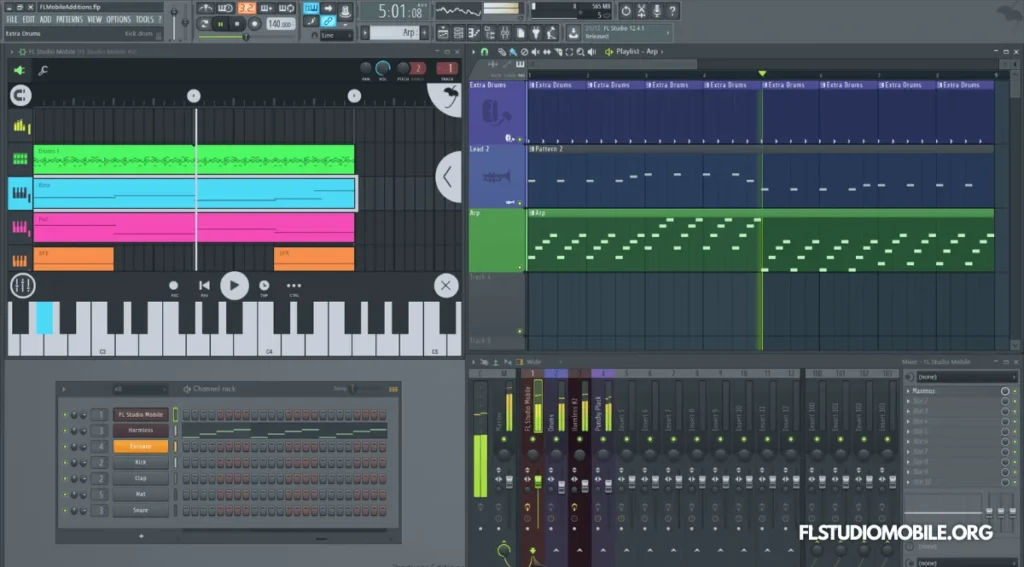
How to Use the FL Studio Mobile Plugin?
ollow these simple steps to import and work with your FL Studio Mobile projects inside FL Studio Desktop using the plugin:
Download the Latest Plugin Version
The FL Studio Mobile Plugin is updated frequently. Always ensure you are using the latest version available on the Image-Line user forum. This ensures full compatibility with your current FL Studio and Mobile app versions.
Transfer Your Project from Mobile to PC
You’ll first need to share your project from the FL Studio Mobile app to your computer.
- Open FL Studio Mobile on your device.
- Go to My Songs → Share → Send All.
- This will send your project, samples, and instruments.
- Copy these files to your computer (usually into your Documents → Image-Line → Downloads → FL Studio Mobile Factory Data folder).
The “Send All” option is crucial the first time you transfer — it ensures the factory samples and instruments are included with the project.
Open the Plugin in FL Studio (Desktop)
- Launch FL Studio (Desktop).
- From the Plugin Database, load the FL Studio Mobile Plugin.
- Open your transferred project (.flm file) within the plugin.
The plugin automatically syncs with your desktop FL Studio Playlist and matches its tempo to the host’s BPM settings.
Sync and Play
Once your project is loaded:
- Add an empty pattern in the FL Studio Playlist equal to your mobile project’s length.
- Press Play, and the plugin will play your mobile project in sync with the desktop timeline.
- Now you can start layering other plugins, instruments, or effects from FL Studio’s extensive library.
Routing and Mixing Options
You can route each track from FL Studio Mobile to its own Mixer Track inside FL Studio for advanced mixing and mastering.
This is especially helpful when:
- You want to apply high-end VST effects.
- You plan to adjust individual track EQs and dynamics.
- You need to prepare your project for professional mastering.
To do this, use the FL Studio Plugin Version Routing options in the plugin settings.
Exporting MIDI Data
Another great feature is the ability to export MIDI data from FL Studio Mobile:
- Use the Save as MIDI (per track) option to export individual tracks.
- Or use the Save Complete Project as MIDI option to export the full arrangement.
You can then import these MIDI files into FL Studio (Desktop) and replace instruments, rearrange melodies, or refine automation for professional results.
Philosophy of Use
The FL Studio Mobile Plugin isn’t just a technical bridge — it’s a creative one. The philosophy behind it is simple:
“Start anywhere. Finish anywhere.”
Think of your mobile project as the creative foundation — the core idea. Then, when you move to your desktop, you can expand and enhance it with the desktop version’s unlimited plugins, CPU power, and precision tools.
Example Workflow
- Compose beats or melodies on your phone while traveling.
- Transfer the project to your PC using the plugin.
- Add professional VSTs like Serum, Nexus, or Harmor.
- Use powerful mastering tools and automation.
- Export your final track in WAV or MP3.
If your project becomes too heavy for mobile playback, you can mute certain tracks before transferring back, keeping the project CPU-efficient for on-the-go editing.
Benefits of Using the FL Studio Mobile Plugin
| Feature | Description |
|---|---|
| Seamless Project Transfer | Move projects between FL Studio Mobile and Desktop easily. |
| Full Compatibility | Retains samples, automation, and effects. |
| High-Quality Sound | Uses the same professional-grade sound engine as FL Studio. |
| CPU Advantage | Desktop hardware handles heavy plugins efficiently. |
| Cross-Platform Creativity | Start a project on Android/iOS and finish on Windows/macOS. |
Best Practices for Smooth Workflow
- Always update both FL Studio Mobile and the plugin to the latest versions.
- When sharing for the first time, always use “Send All” to transfer samples.
- Organize your project folders clearly to avoid missing instruments.
- Keep your FL Studio and Mobile versions in sync (e.g., v4.8.10 Mobile with latest plugin).
- Regularly backup your projects before importing/exporting.
Pro Tip
Use FL Studio Mobile as your sketchbook for ideas.
It’s light, portable, and great for creating song structures, melodies, or beats. Then, open your sketch in FL Studio Desktop via the plugin to fully arrange, mix, and master the track with professional-grade tools.
Conclusion
The FL Studio Mobile Plugin is a game-changer for music producers who value flexibility and portability. It allows you to start creating anywhere and finish with studio precision — without losing your creative momentum.
By integrating your mobile workflow with desktop power, you unlock the best of both worlds: mobility and mastery. Whether you’re a beginner learning the ropes or a professional refining your next hit, this plugin bridges your creative universe seamlessly.